> ## Documentation Index
> Fetch the complete documentation index at: https://developers.circle.com/llms.txt
> Use this file to discover all available pages before exploring further.

> ## Agent Instructions
> Before reading these docs, install the relevant Circle Skill to get pre-loaded context — skills are LLM-optimized and cover architecture decisions, correct flows, and common pitfalls. In Claude Code: run /plugin marketplace add circlefin/skills then /plugin install circle-skills@circle. With Vercel Skills CLI: run npx skills add circlefin/skills. Available skills: use-usdc https://github.com/circlefin/skills/blob/master/plugins/circle/skills/use-usdc/SKILL.md (balances, transfers, approvals on EVM and Solana); EURC has no skill — see https://developers.circle.com/stablecoins/what-is-eurc.md; bridge-stablecoin https://github.com/circlefin/skills/blob/master/plugins/circle/skills/bridge-stablecoin/SKILL.md (crosschain transfers via CCTP, USDC, EURC, and third-party assets); use-arc https://github.com/circlefin/skills/blob/master/plugins/circle/skills/use-arc/SKILL.md (Arc chain config, contract deployment, USDC bridging — Arc docs: https://docs.arc.io/llms.txt); use-circle-wallets https://github.com/circlefin/skills/blob/master/plugins/circle/skills/use-circle-wallets/SKILL.md (choose wallet type); use-developer-controlled-wallets https://github.com/circlefin/skills/blob/master/plugins/circle/skills/use-developer-controlled-wallets/SKILL.md (custodial wallets for payouts and treasury); use-user-controlled-wallets https://github.com/circlefin/skills/blob/master/plugins/circle/skills/use-user-controlled-wallets/SKILL.md (embedded wallets with Web2 login); use-modular-wallets https://github.com/circlefin/skills/blob/master/plugins/circle/skills/use-modular-wallets/SKILL.md (smart contract wallets with passkeys and ERC-4337); use-gateway https://github.com/circlefin/skills/blob/master/plugins/circle/skills/use-gateway/SKILL.md (unified USDC balance, nanopayments); use-smart-contract-platform https://github.com/circlefin/skills/blob/master/plugins/circle/skills/use-smart-contract-platform/SKILL.md (deploy, interact, monitor contracts). Pair any skill with the Circle MCP server for live SDK signatures, contract addresses, and chain IDs: {"mcpServers":{"circle":{"url":"https://api.circle.com/v1/codegen/mcp"}}}.
> Read the product overview first. Each product has an overview explaining when and why to use it. Read it before quickstarts.
> Pick the right wallet type. Developer-controlled (you hold keys), user-controlled (end user holds keys via PIN/social login), or modular (smart contract wallets with passkeys). See https://developers.circle.com/wallets.md.
> Use CCTP V2 for crosschain transfers. CCTP natively transfers USDC and EURC via burn-and-mint, and supports permissionless wrapping of third-party assets via lock-and-mint. V1 is legacy; always use V2 unless V1 is specified or the chain requires it (Noble, Sui, and Aptos still require V1). Migration guide: https://developers.circle.com/cctp/migration-from-v1-to-v2.md.
> Use Bridge Kit for frontend bridging. Wraps CCTP with a simpler SDK for user-facing apps. Use CCTP directly for backend transfers.
> Gas Station vs Paymaster. Gas Station sponsors gas for Circle Wallet transactions. Paymaster lets users pay gas in USDC. Different use cases — read both overviews.
> Gateway Nanopayments for sub-cent payments. Gasless USDC micropayments down to $0.000001 via x402 and batched settlement. For pay-per-request APIs, AI agent payments, streaming.
> Look up USDC addresses per chain. Never hardcode — use https://developers.circle.com/stablecoins/usdc-contract-addresses.md.
> Prefer SDKs over raw API calls. Node.js and Python SDKs handle auth, retries, and errors.
> API key required. Bearer token in Authorization header. Testnet and mainnet use separate keys and may use different base URLs depending on the product.
> Set up webhooks when available. Most operations are async. Webhooks deliver transaction confirmations and state changes.
> When calling list endpoints, paginate using pageSize and pageAfter until no nextPageAfter cursor is returned—stopping at the first page silently misses records.
> Building an AI agent? Start with the Agent Stack—Circle CLI, agent wallets, and nanopayments built for autonomous use cases: https://developers.circle.com/agent-stack.md.

# Quickstart: Set up and transfer USDC on Sui

USDC provides the ability to transfer US dollars over public blockchains using
smart contracts. The smart contract allows users to send, receive, and store
dollars onchain with a wallet. Here's a quickstart guide for developers to build
a web app to perform their first USDC transfer on Sui.

## Prerequisites

Before you start building the sample app to perform a USDC transfer, make sure
you meet the following prerequisites:

* **[Node.js](https://nodejs.org/en)** and **[npm](https://www.npmjs.com/)**:
  Make sure that you have `Node.js` and `npm` installed on your machine. You can
  download and install `Node.js` from [nodejs.org](https://nodejs.org). `npm`
  comes with `Node.js`.
* **[Sui Wallet](https://chromewebstore.google.com/detail/sui-wallet/opcgpfmipidbgpenhmajoajpbobppdil)**:
  Install the Sui Wallet browser extension and set up your wallet. Make sure
  that your wallet is funded with:
  * Some SUI testnet tokens to cover transaction fees.
  * USDC tokens for the transfer.
    ([USDC Testnet Faucet](https://faucet.circle.com/))

## Contract Addresses

You will need the following contract addresses:

* Testnet -
  [0xa1ec7fc00a6f40db9693ad1415d0c193ad3906494428cf252621037bd7117e29::usdc::USDC](https://suiscan.xyz/testnet/coin/0xa1ec7fc00a6f40db9693ad1415d0c193ad3906494428cf252621037bd7117e29::usdc::USDC/txs)
* Mainnet -
  [0xdba34672e30cb065b1f93e3ab55318768fd6fef66c15942c9f7cb846e2f900e7::usdc::USDC](https://suiscan.xyz/mainnet/coin/0xdba34672e30cb065b1f93e3ab55318768fd6fef66c15942c9f7cb846e2f900e7::usdc::USDC/txs)

## Installation

Perform the following installation and setup steps:

1. **Project Setup**: Create a new project directory and initialize it with
   `npm`:

```shell Shell theme={null}
npx create-next-app@latest usdc-transfer-app
```

2. When prompted, choose the following options:
   * Use `TypeScript`: Yes
   * Use `ESLint`: Yes
   * Use `Tailwind CSS`: Yes
   * Use `src/` directory: Yes
   * Use `App Router`: Yes
   * Customize the default import alias: No

3. Navigate to the project directory:

```shell Shell theme={null}
cd usdc-transfer-app
```

4. Install additional dependencies:

```shell Shell theme={null}
npm install @mysten/dapp-kit @mysten/sui @mysten/wallet-kit @tanstack/react-query
```

## Import Code and Setup

5. The code provided will be updated in the `src/app/page.tsx` file. This
   section imports necessary libraries and sets up the network configuration.

```javascript TypeScript theme={null}
"use client";
import { useState, useEffect } from "react";
import {
  ConnectButton,
  useWalletKit,
  WalletKitProvider,
} from "@mysten/wallet-kit";
import { SuiClientProvider, useSuiClient } from "@mysten/dapp-kit";
import { QueryClient, QueryClientProvider } from "@tanstack/react-query";
import { TransactionBlock } from "@mysten/sui.js/transactions";

// Define the network we're connecting to (testnet in this case)
const networks = {
  testnet: { url: "https://fullnode.testnet.sui.io:443" },
};

// Create a new QueryClient for managing and caching asynchronous queries
const queryClient = new QueryClient();
```

This component handles the main functionality of the application, including
wallet connection token definition, and token transfer.

**a. Define USDC testnet token contract**

```javascript TypeScript theme={null}
// Define the USDC token type on Sui testnet
// This is the unique identifier for the USDC token on Sui
const USDC_TYPE =
  "0xa1ec7fc00a6f40db9693ad1415d0c193ad3906494428cf252621037bd7117e29::usdc::USDC";
```

**b. State Management**

Define state variables to manage the connection status, amount, recipient
address, and transaction status.

```javascript TypeScript theme={null}
function HomeContent() {
  // Use the wallet kit to get the current account and transaction signing function
  const { currentAccount, signAndExecuteTransactionBlock } = useWalletKit();
  // Get the Sui client for interacting with the Sui network
  const suiClient = useSuiClient();
  const [connected, setConnected] = useState(false);
  const [amount, setAmount] = useState('');
  const [recipientAddress, setRecipientAddress] = useState('');
  const [txStatus, setTxStatus] = useState('');
```

**c. Effect Hook for Connection Status**

Use `useEffect()` to update the connection status whenever the `currentAccount`
changes.

```javascript TypeScript theme={null}
// Update the connection status when the current account changes
useEffect(() => {
  setConnected(!!currentAccount);
}, [currentAccount]);
```

**d. Token Sending Logic**

Define the function to handle sending tokens, including validation and
transaction execution.

```javascript TypeScript theme={null}
const handleSendTokens = async () => {
  if (!currentAccount || !amount || !recipientAddress) {
    setTxStatus("Please connect wallet and fill all fields");
    return;
  }
  try {
    // Fetch USDC coins owned by the current account
    // This uses the SuiClient to get coins of the specified type owned by the current address
    const { data: coins } = await suiClient.getCoins({
      owner: currentAccount.address,
      coinType: USDC_TYPE,
    });
    if (coins.length === 0) {
      setTxStatus("No USDC coins found in your wallet");
      return;
    }
    // Create a new transaction block
    // TransactionBlock is used to construct and execute transactions on Sui
    const tx = new TransactionBlock();
    // Split the coin and get a new coin with the specified amount
    // This creates a new coin object with the desired amount to be transferred
    const [coin] = tx.splitCoins(coins[0].coinObjectId, [
      tx.pure(BigInt(amount)),
    ]);
    // Transfer the split coin to the recipient
    // This adds a transfer operation to the transaction block
    tx.transferObjects([coin], tx.pure(recipientAddress));
    // Sign and execute the transaction block
    // This sends the transaction to the network and waits for it to be executed
    const result = await signAndExecuteTransactionBlock({
      transactionBlock: tx,
    });
    console.log("Transaction result:", result);
    setTxStatus(`Transaction successful. Digest: ${result.digest}`);
  } catch (error) {
    console.error("Error sending tokens:", error);
    setTxStatus(
      `Error: ${error instanceof Error ? error.message : "Unknown error"}`,
    );
  }
};
```

**e. Rendering the UI**

Render the main UI components, including input fields for amount and recipient
address, and a button to send tokens.

```javascript TypeScript theme={null}
   return (
    <main className="flex min-h-screen flex-col items-center justify-center p-24">
      <div className="z-10 w-full max-w-5xl items-center justify-between font-mono text-sm">
        <h1 className="text-4xl font-bold mb-8">Sui USDC Sender (Testnet)</h1>
        <ConnectButton />
        {connected && currentAccount && (
          <p className="mt-4">Connected: {currentAccount.address}</p>
        )}
        <div className="mt-8">
          <input
            type="text"
            placeholder="Amount (in USDC)"
            value={amount}
            onChange={(e) => setAmount(e.target.value)}
            className="p-2 border rounded mr-2 text-black"
          />
          <input
            type="text"
            placeholder="Recipient Address"
            value={recipientAddress}
            onChange={(e) => setRecipientAddress(e.target.value)}
            className="p-2 border rounded mr-2 text-black"
          />
          <button
            onClick={handleSendTokens}
            disabled={!connected}
            className={`p-2 rounded ${
              connected && amount && recipientAddress
                ? 'bg-blue-200 text-black hover:bg-blue-300'
                : 'bg-gray-300 text-gray-500'
            } transition-colors duration-200`}
          >
            Send USDC
          </button>
        </div>
        {txStatus && <p className="mt-4">{txStatus}</p>}
      </div>
    </main>
  );
}
```

## Main Application Component

This component wraps the `HomeContent()` function with the necessary providers
for state management and wallet connection.

```javascript TypeScript theme={null}
export default function Home() {
  return (
    // Wrap the app with necessary providers
    // QueryClientProvider: Provides React Query context for managing async queries
    // SuiClientProvider: Provides the Sui client context for interacting with the Sui network
    // WalletKitProvider: Provides wallet connection and interaction capabilities
    <QueryClientProvider client={queryClient}>
      <SuiClientProvider networks={networks} defaultNetwork="testnet">
        <WalletKitProvider>
          <HomeContent />
        </WalletKitProvider>
      </SuiClientProvider>
    </QueryClientProvider>
  );
}
```

6. Start the development server:

```shell Shell theme={null}
npm run dev
```

7. Open [http://localhost:3000](http://localhost:3000) in your browser.

## Connecting Your Wallet

* On the USDC Token Sender app, click the “Connect Wallet” button.
* Select your wallet from the list of available options.
* Approve the connection in your wallet extension.

## Performing a USDC Transfer

* Ensure you have USDC tokens in your wallet. You can get testnet tokens from
  our [faucet](https://faucet.circle.com/) if needed.
* Click the `Request testnet SUI Tokens` from your Sui Wallet to source gas
  tokens.
* In the app, enter the amount of USDC you want to send and the recipient's
  address.
* Click the `Send Tokens` button.
* Your wallet will prompt you to approve the transaction. Review the details and
  confirm.
* Wait for the transaction to be processed. The app will display the transaction
  to status.

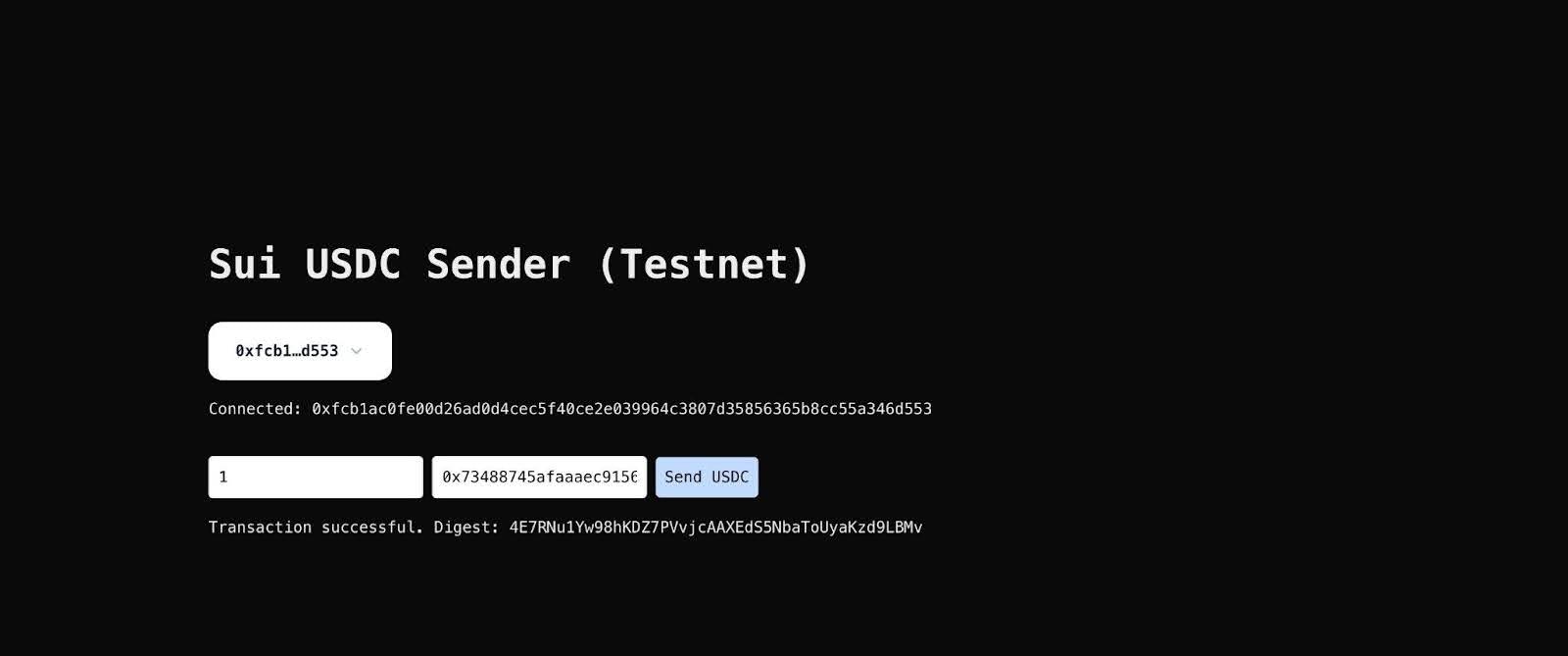
## Sample App UI

<Frame>
  <img src="https://mintcdn.com/circle-167b8d39/18D1O5_C359Zz2z5/stablecoins/images/qs-usdc-sui-app-ui.jpg?fit=max&auto=format&n=18D1O5_C359Zz2z5&q=85&s=4b6280614ee87ccba34f4e4cdcd95032" width="1600" height="669" data-path="stablecoins/images/qs-usdc-sui-app-ui.jpg" />
</Frame>

## Successful Transaction

You can use the [Sui Explorer](https://suiscan.xyz/) to check the status of the
transaction.
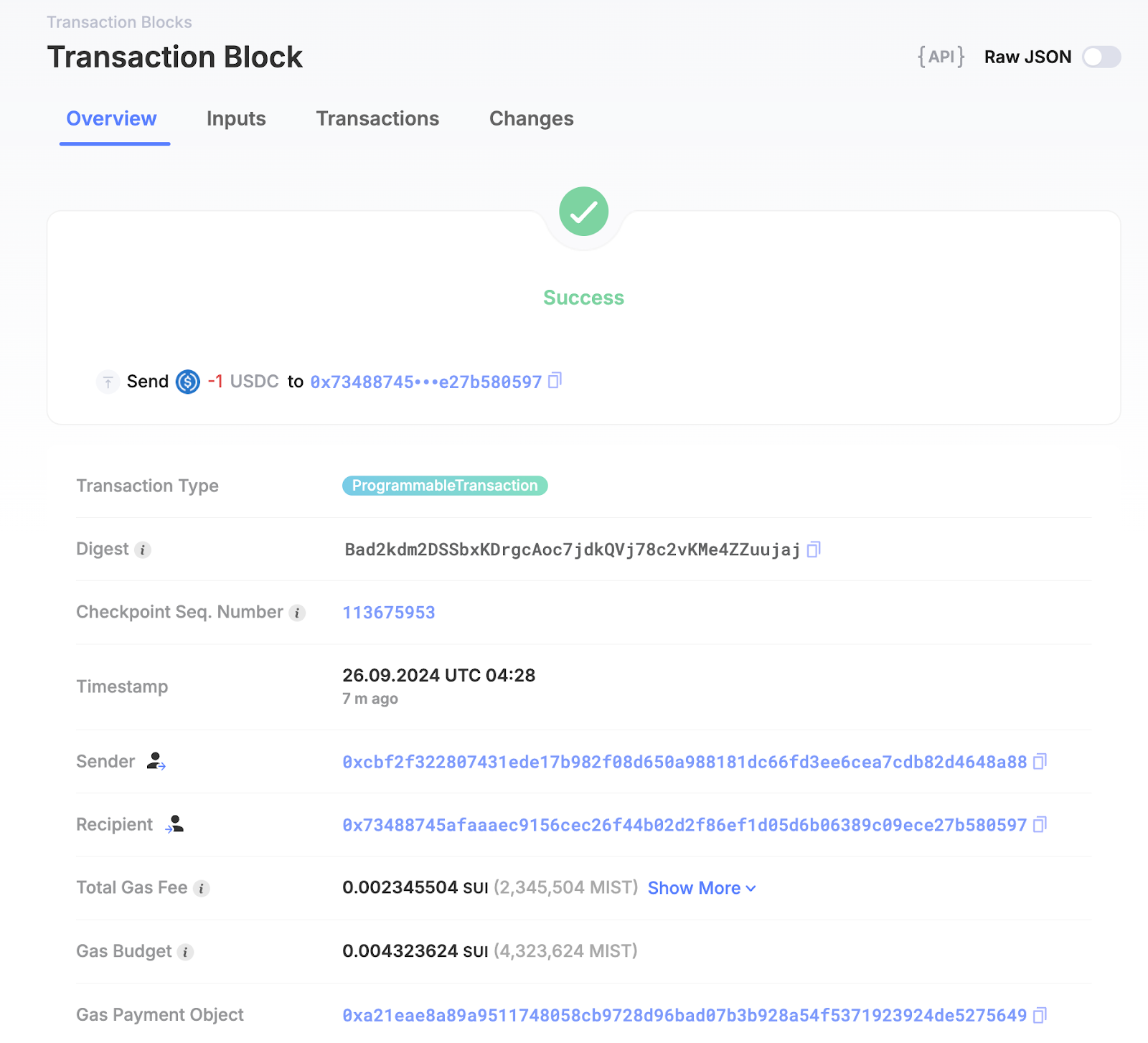
<Frame>
  <img src="https://mintcdn.com/circle-167b8d39/18D1O5_C359Zz2z5/stablecoins/images/qs-usdc-sui-app-tx.png?fit=max&auto=format&n=18D1O5_C359Zz2z5&q=85&s=e59314d98a48586c934acc87832cc8d8" width="1600" height="1454" data-path="stablecoins/images/qs-usdc-sui-app-tx.png" />
</Frame>